
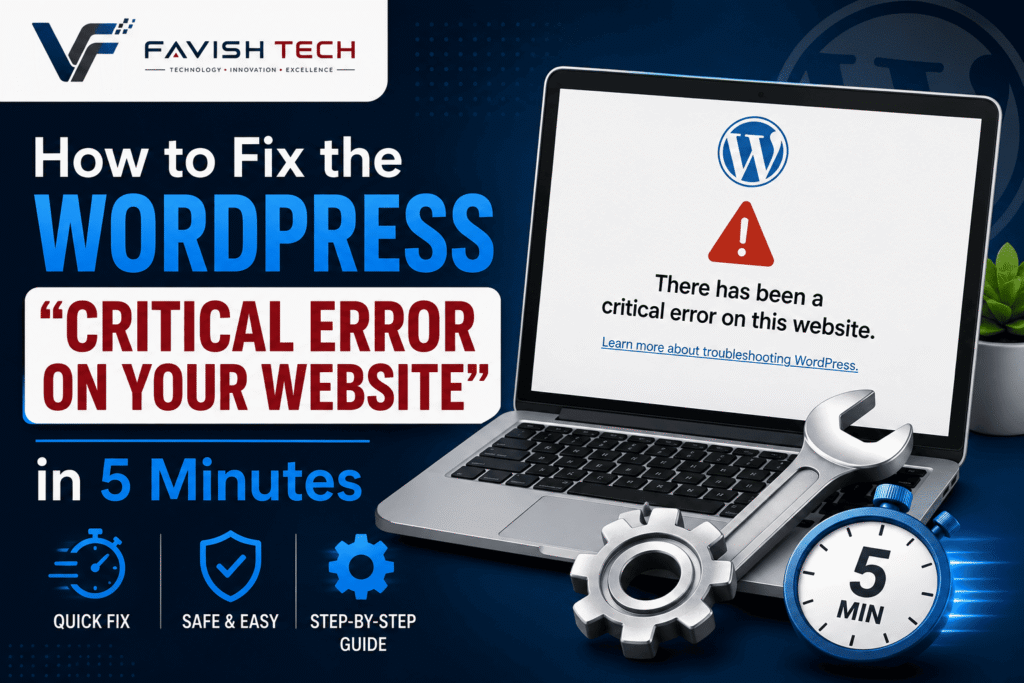
Seeing “there has been a critical error on this website“? This is one of the most common WordPress critical errors, and it’s almost always fixable in under 5 minutes — without losing any data. Your front-end goes blank, you can’t log into your WP-Admin dashboard, and every minute the site stays down risks losing potential clients.
Don’t panic. A WordPress critical error almost always happens due to a recent plugin or theme conflict, or an unexpected PHP memory script crash. Your core website data and database are perfectly safe. Here are the 3 quick steps to bypass the white screen and fix this critical error completely for free.
Here are the 3 quick steps to bypass the white screen and fix it completely for free.
Step 1: Check Your Email for the WordPress Recovery Mode Link
WordPress has a built-in safety net. When a fatal error occurs, it automatically sends an emergency email to the site administrator’s inbox.
- Check your admin email account (and check the spam folder).
- Look for an email titled “Your Site is Experiencing a Technical Issue”.
- Click the special Recovery Mode Link provided inside.
- This logs you into a secure backend where WordPress highlights the exact broken plugin. Simply click Deactivate, and your site will instantly go live again.
Step 2: Fix via File Manager / cPanel (If No Email Received)
If you don’t have access to the admin email, you can easily turn off the broken plugins manually through your hosting account:
- Log into your hosting provider dashboard and open cPanel (or your platform’s File Manager).
- Navigate to public_html → wp-content.
- Locate the folder named
plugins. Right-click it and rename it toplugins_old. - Refresh your website screen. If the site loads, a faulty plugin was the culprit!
- Change the folder name back to
plugins, go to your dashboard, and turn them back on one by one to find the specific one causing the crash.
Step 3: Switch to a Default Fallback Theme
If disabling plugins didn’t clear the screen, your active theme might be outdated or corrupted.
- Inside your File Manager, go to wp-content → themes.
- Find your active theme’s folder and rename it (e.g., change
divitodivi_old). - WordPress will notice the active theme is missing and automatically force your site to load a default fallback theme (like Twenty-Twenty-Four), safely bringing your site layout back online.
Scared of Breaking Your WordPress Site? Let Us Handle It!
If you don’t have access to your cPanel, or if modifying database core files feels too risky, you don’t have to guess and risk crashing your business infrastructure completely.
At FavishTech, we provide 24/7 Emergency WordPress Repair Services. Our expert developers will jump in, safely diagnose the root script issue, and bring your website back online securely in less than 2 hours.
Frequently Asked Questions
What does “there has been a critical error on this website” mean?
This message means WordPress has detected a fatal PHP error that’s preventing your site from loading normally — usually caused by a plugin conflict, a theme issue, or a script running out of memory. It’s a safety mechanism WordPress uses to stop a broken site from displaying a blank white screen without explanation. The good news is that this error almost never means your data or database is damaged — it’s a functionality issue, not a data-loss issue.
How do I fix a WordPress critical error?
The fastest fix is checking your admin email for WordPress’s automatic Recovery Mode link, which lets you safely identify and deactivate the broken plugin. If you don’t have that email, you can log into your hosting’s File Manager or cPanel, rename your plugins folder to temporarily disable all plugins, and reload your site to confirm a plugin was the cause. From there, reactivate plugins one by one to find the specific culprit. If the issue persists, switching to a default WordPress theme can rule out a theme conflict.
Will I lose my data if I get a critical error in WordPress?
No. A critical error is almost always caused by a plugin, theme, or script conflict — not database corruption. Your posts, pages, media, and core website data remain safe in your database while you troubleshoot. The error simply stops the site from rendering until the conflicting plugin or theme is deactivated.
Why does my WordPress site suddenly show a critical error?
This usually happens right after a plugin update, a new plugin installation, a theme update, or a change in your hosting’s PHP version. Any of these can introduce a compatibility issue that WordPress can’t resolve on its own, triggering the critical error screen until the conflicting element is identified and disabled.
👉 Click Here to Contact Favish Tech Support and Get Your Site Fixed Safely Now!